
Producer Controls, giving you greater flexibility and control over participant audio and video during live sessions and group recordings.
Minimize disruptions during live sessions.
Optimize participant audio/video without needing the talent to decide.
Deliver a smoother, more professional experience for both audiences and guests.
Socialive Producer Controls for Audio and Video Sources
Select the live source in the live sources panel.

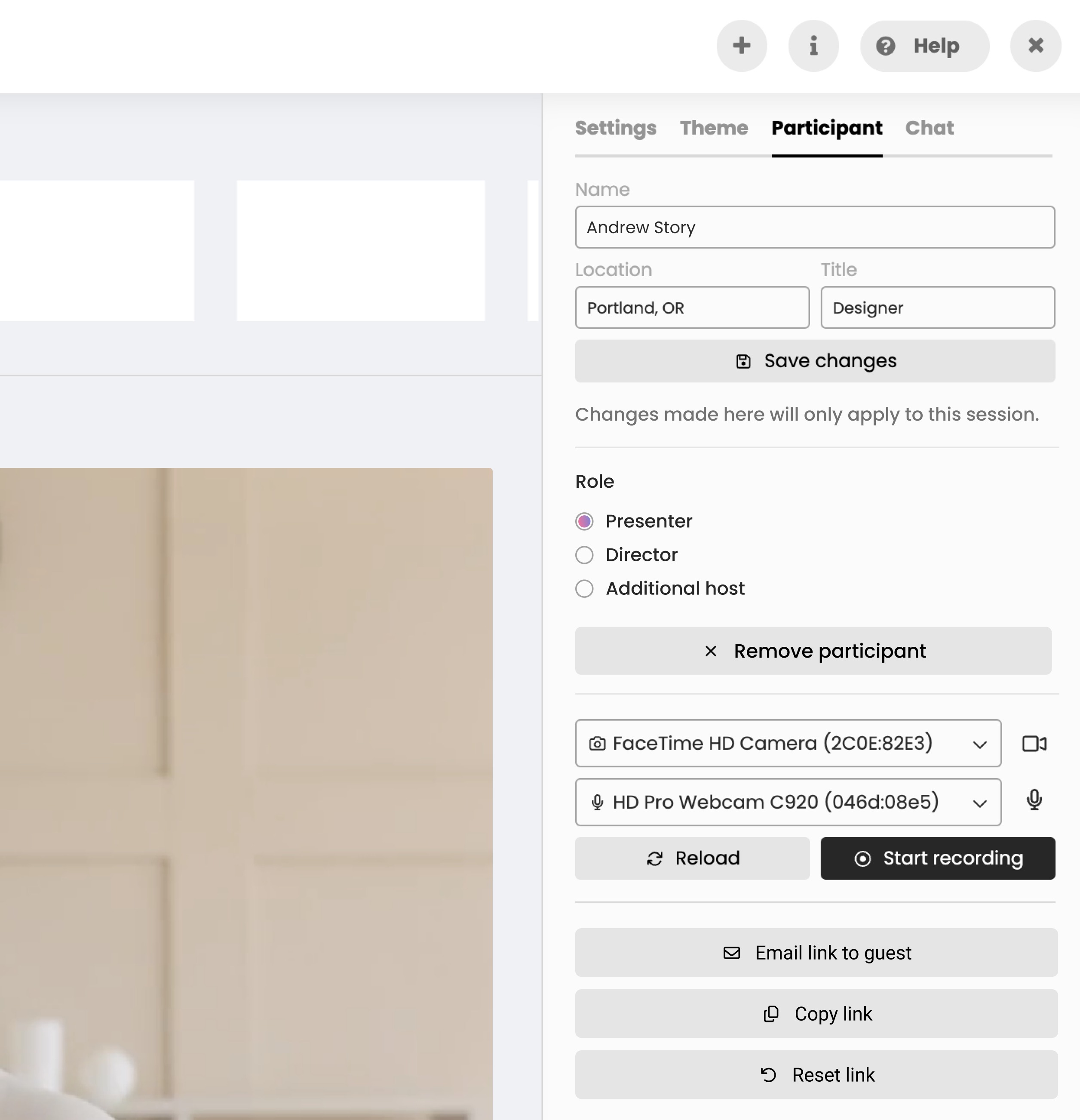
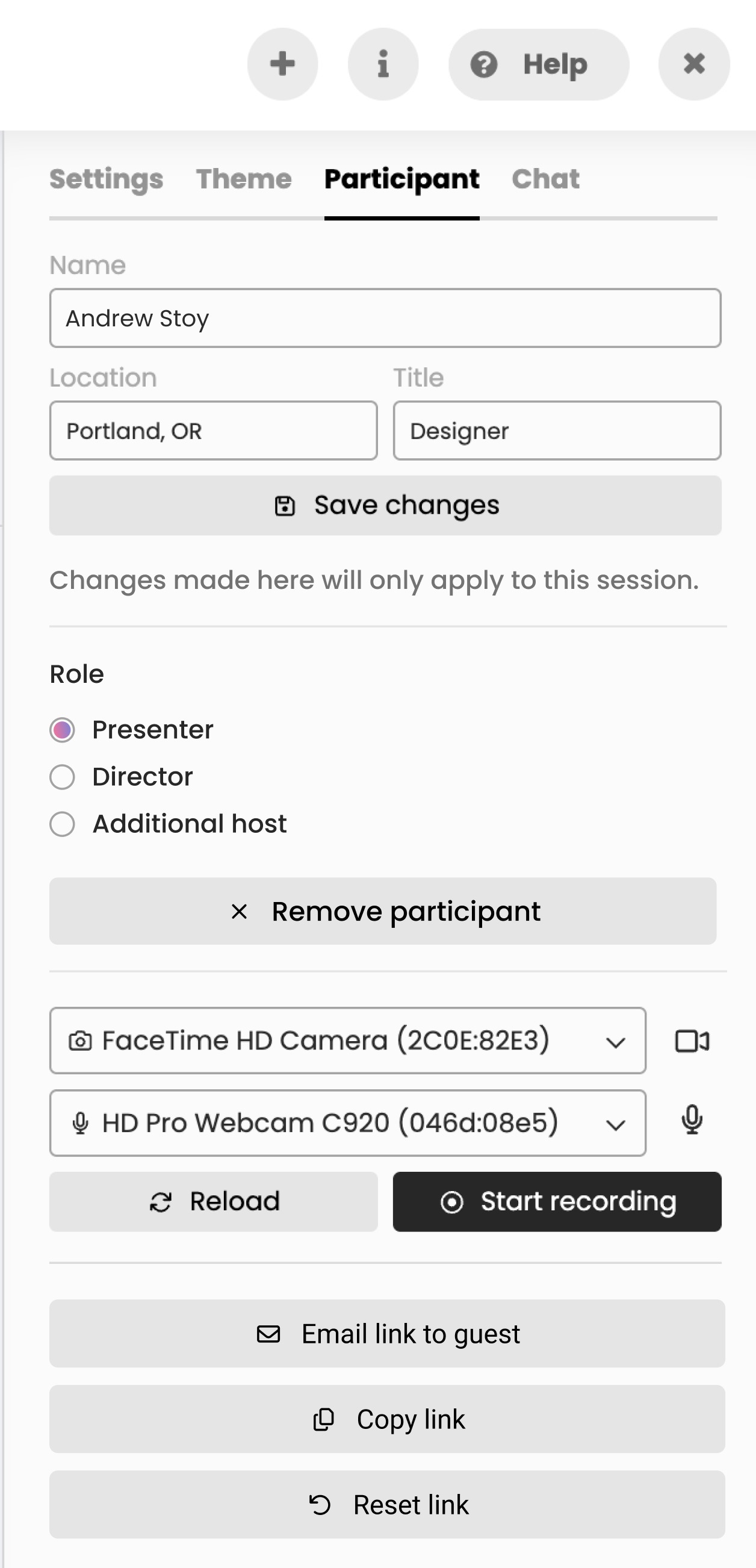
Within the right panel, under the Participant tab, manage the participants’ settings.
Name tag information
Any changes will only apply to this session. To change someone’s name everywhere, profile changes must be made on your dashboard.
Session role
Presenter - Participant / Onscreen talent - this is the default session role
Director - Someone who can communicate with participants without being recorded during the session. This is usually someone who supports the participants from the Green Room. They do not produce the recording.
Additional host - This participant can step in and produce the session in the producer's absence. To be given this role within the session, this participant must have the Producer or Administrator role in Socialive.
Remove participants from the session.
Update camera settings
Turn a participant’s camera on or off
Change camera inputs without disrupting the session
Update audio settings
Mute or unmute a participant’s microphone.
Switch participant audio sources on the fly
Reload connection
Reloading is like a soft reset of the participant’s connection to the Studio. It helps resolve temporary issues without requiring the participant to leave and rejoin.
Start a local recording
Local Recording refers to a high-quality video and audio recording captured directly from a participant’s device, rather than through the cloud or internet stream. It’s best practice to start local recordings anytime you’re recording participants.
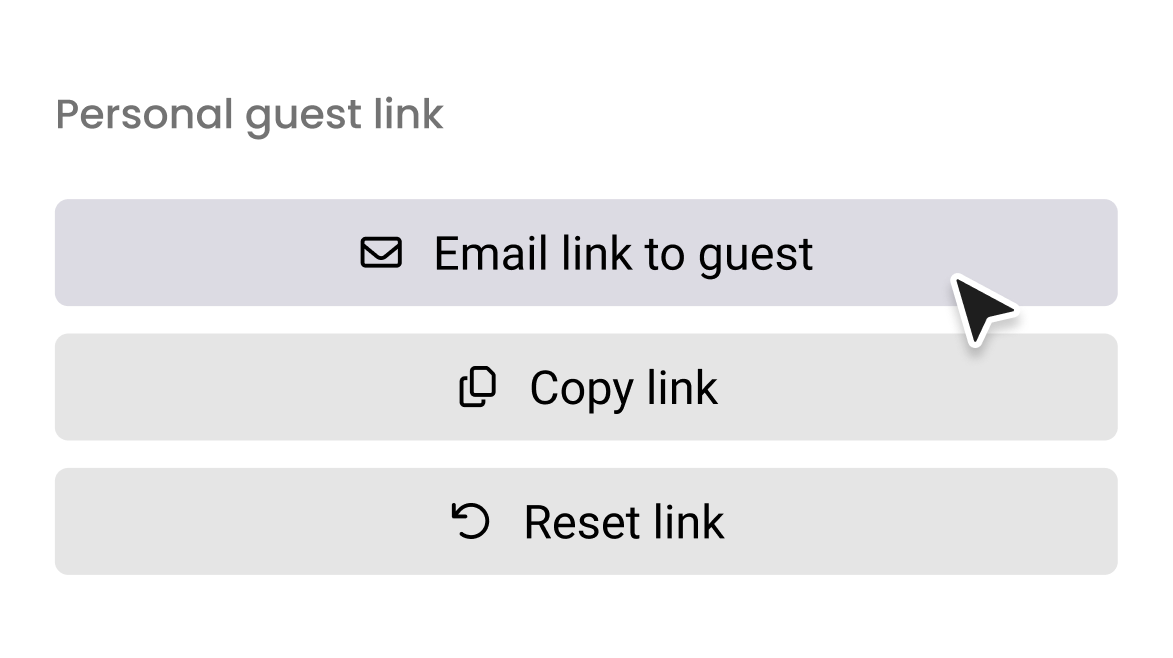
Guest link
Send to email - send the participant a direct link to the session in their inbox
Copy guest link - put the participant’s direct link on your clipboard for pasting into other tools
Reset link - generate a whole new direct link for the participant
To view another participant's settings, click on another participant within the live sources panel.
Additional Notes
The guest must join the Green Room session for the Producer to view their camera and audio sources.
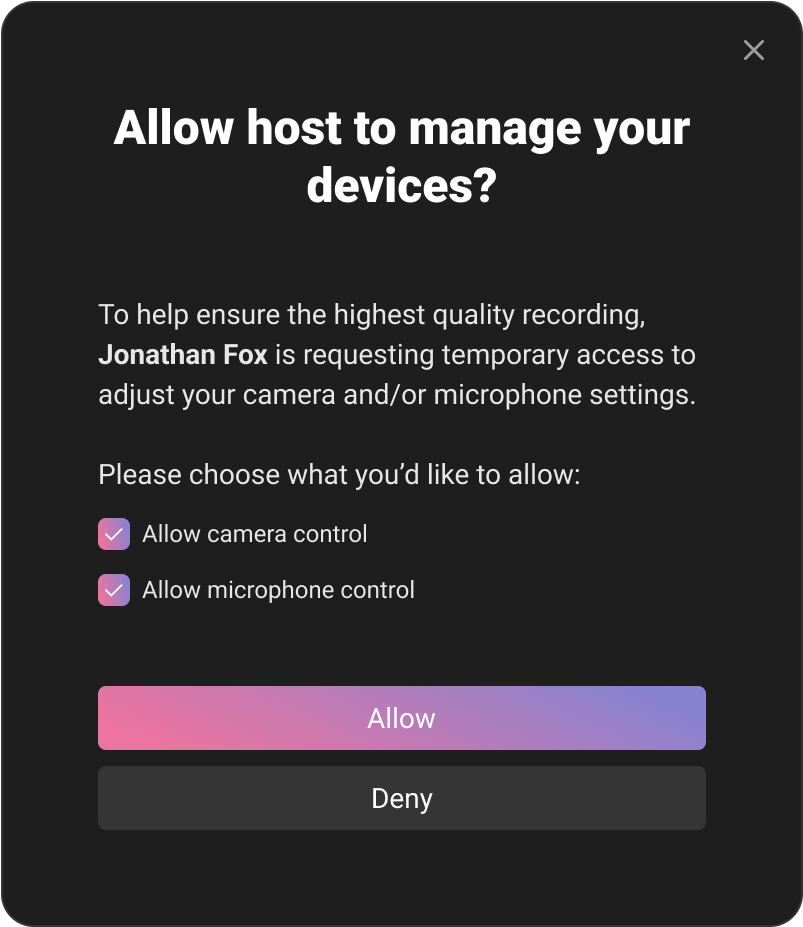
When the Producer updates a camera or audio setting for a participant, the participant is prompted to allow the Producer to control their settings.
Still, looking for an answer?
Contact Socialive Support via live chat, email at support@socialive.us, or submit a support ticket.