
As part of AI Suite's Enhance capabilities, Sharpen makes it even easier to produce high-quality video content quickly and confidently. Whether your video was recorded on a webcam, mobile device, or in less-than-ideal conditions, Sharpen helps bring out fine details and create a crisper, more polished final result. It's a simple way to elevate the quality of your content without re-recording.
What Sharpen Does
Improves the overall clarity of your video
Brings out finer details and edges
Makes subjects appear more defined
Delivers a cleaner, more professional-looking video
When to Use Sharpen
Sharpen is especially helpful for:
Videos that appear slightly soft or lack definition
Content you want to give a more polished, professional finish
How to Use Sharpen
Add a video source to a scene within the Socialive Editor.
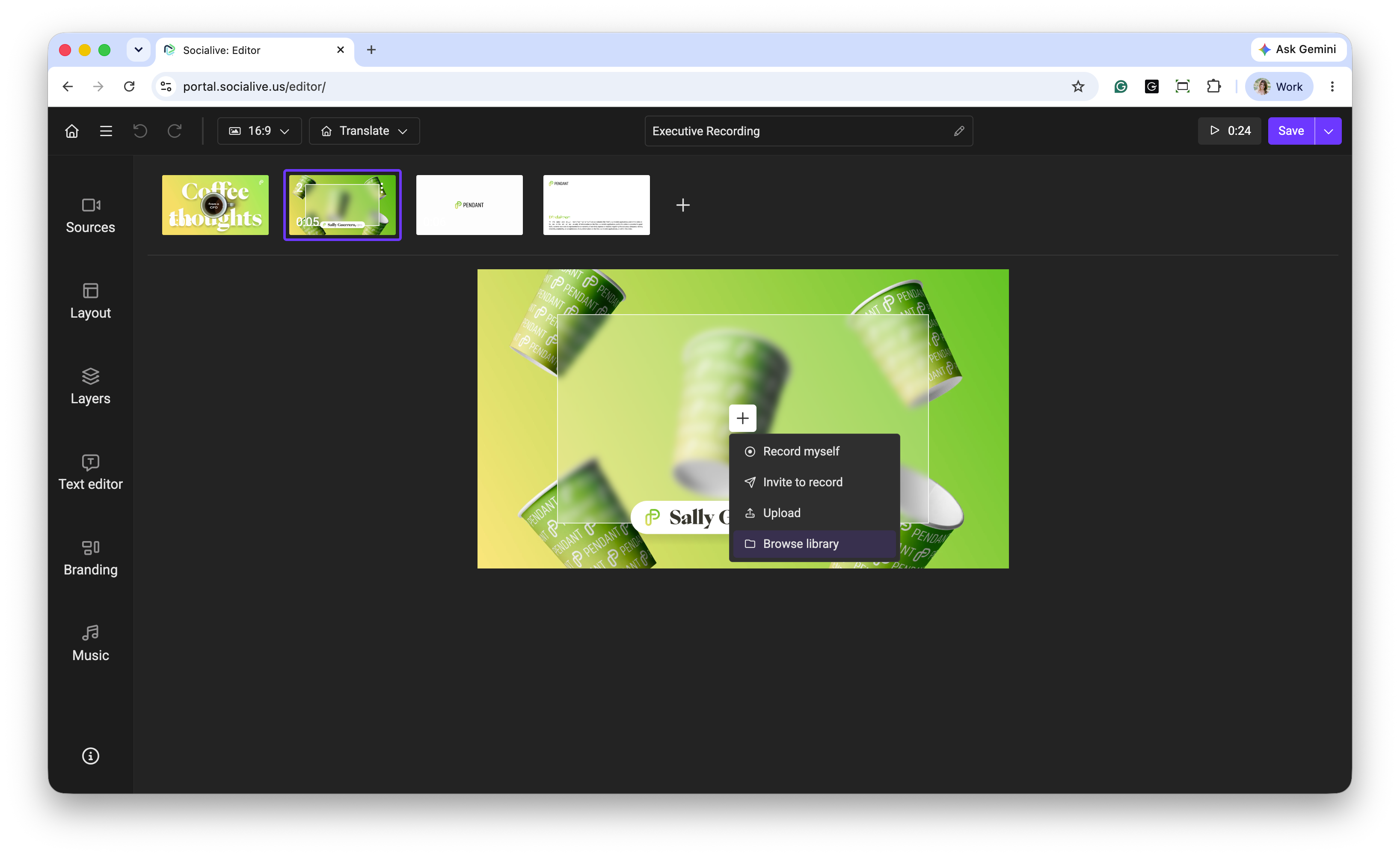
Click the AI icon in the upper left corner of the video source.
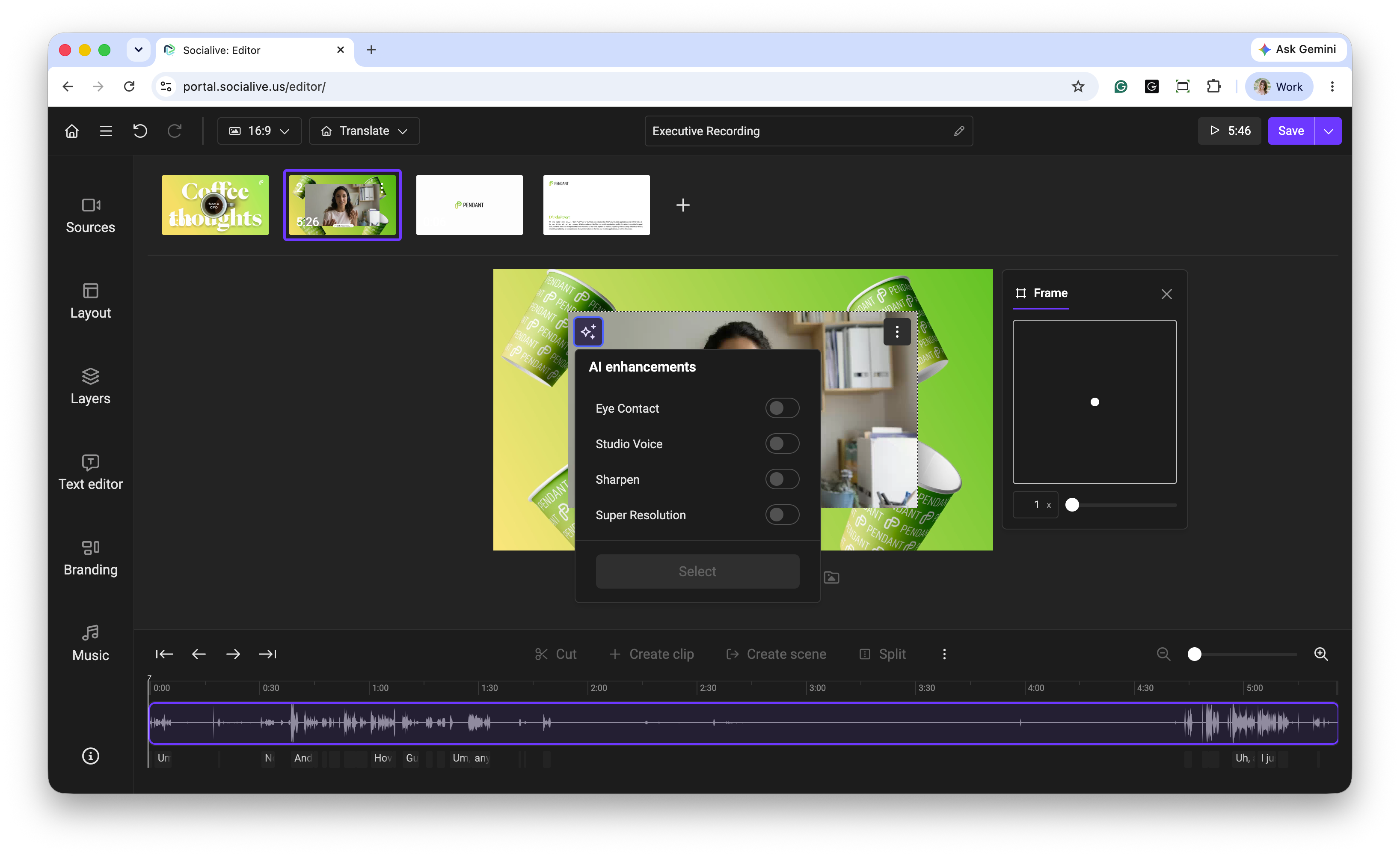
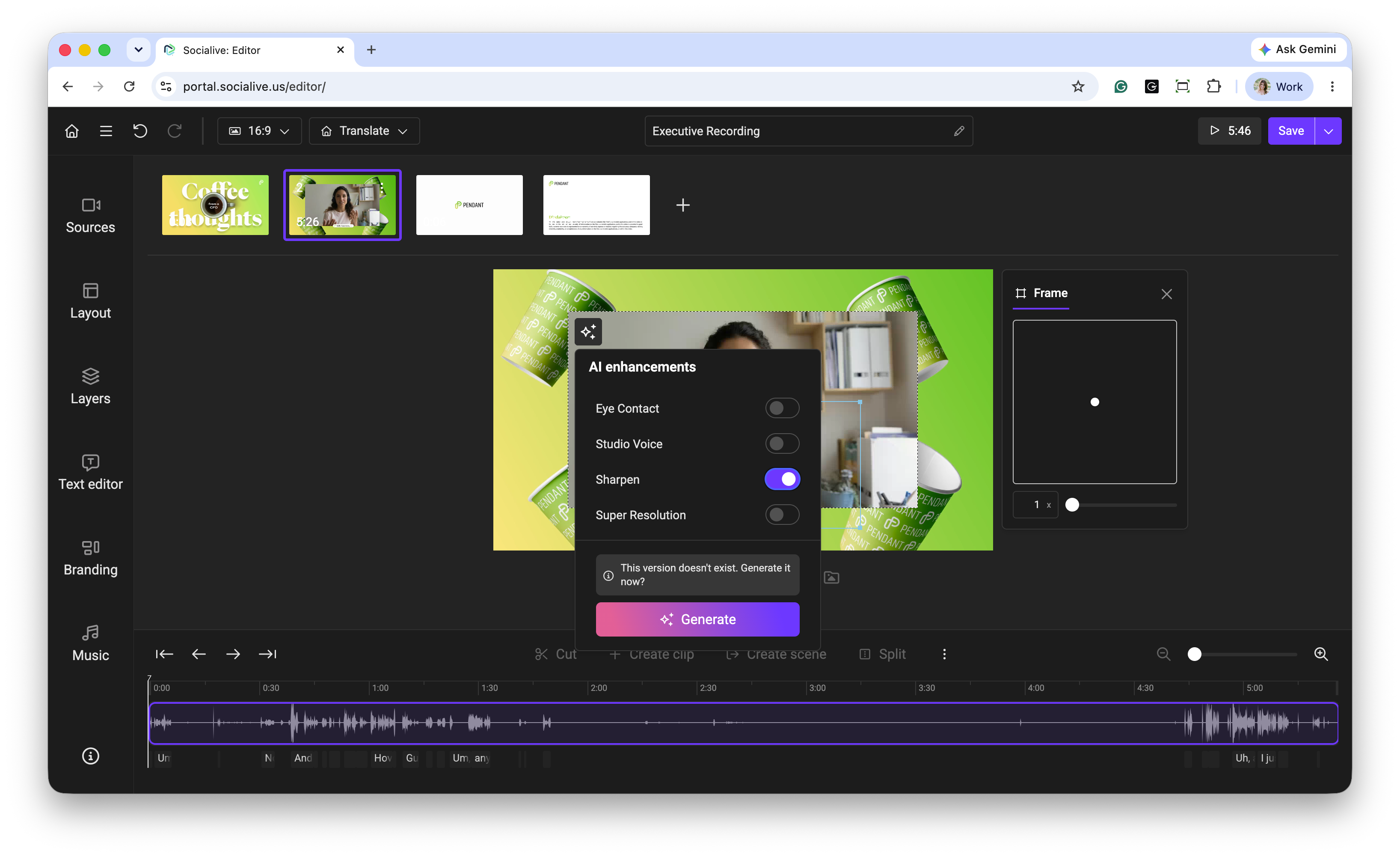
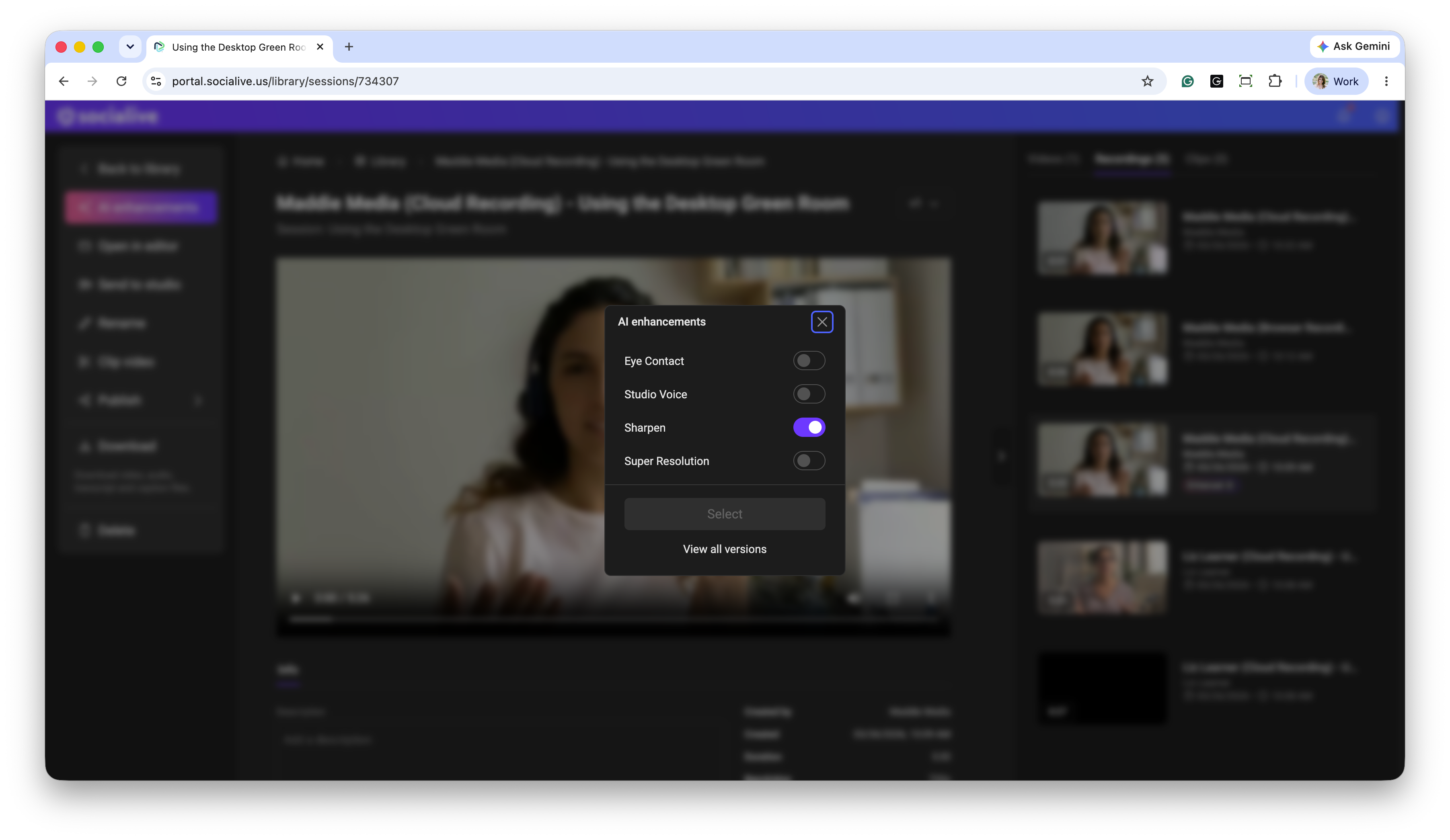
Toggle Sharpen and click Generate to apply the feature. Processing times may vary.
Once Sharpen has been applied to the video, the AI icon will display as being in use. You'll also receive an email confirmation.
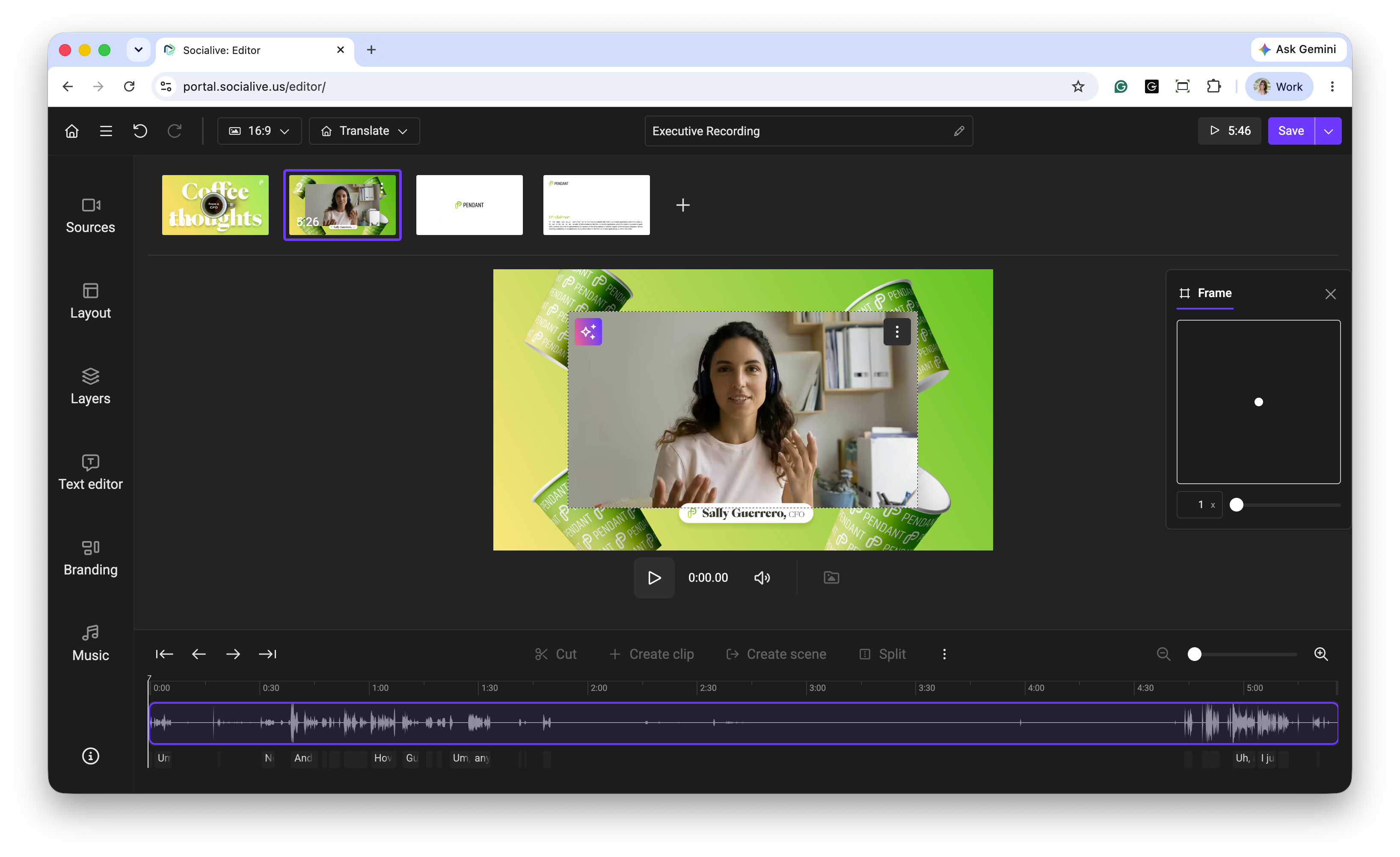
If you need to revert to the original video without Sharpen, select the AI icon. You can also view all versions of the AI enhancements by clicking View all versions.
Additional AISuite features can be added using the same steps.
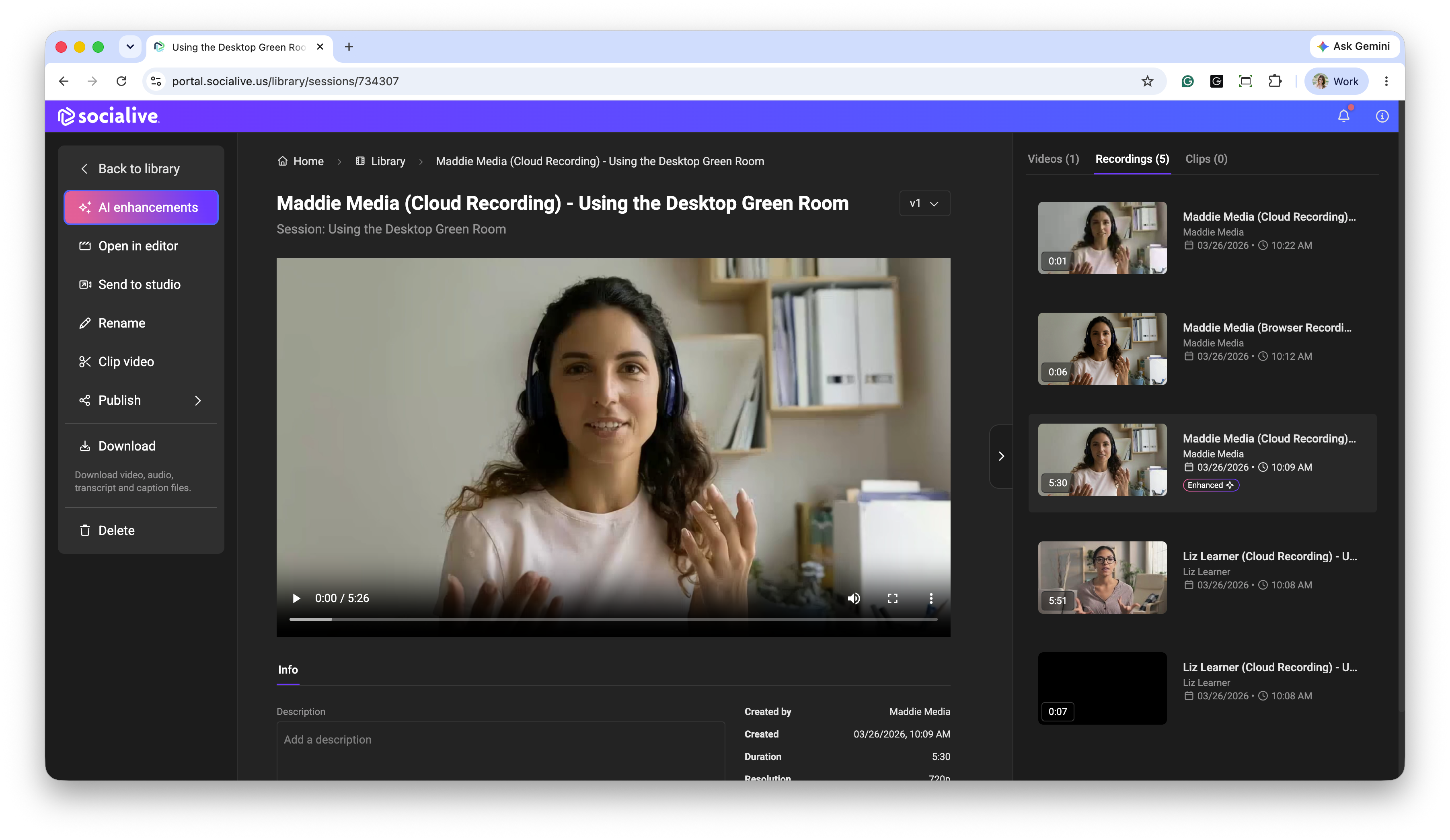
Sharpen and other AISuite features can also be applied directly from the Recording Details page, allowing you to enhance video quality without opening the Editor.
Great content deserves great quality. Sharpen helps improve the visual experience for your audience, making videos more engaging and easier to watch.
Still, looking for an answer?
Contact Socialive Support via live chat, email at support@socialive.us, or submit a support ticket.