
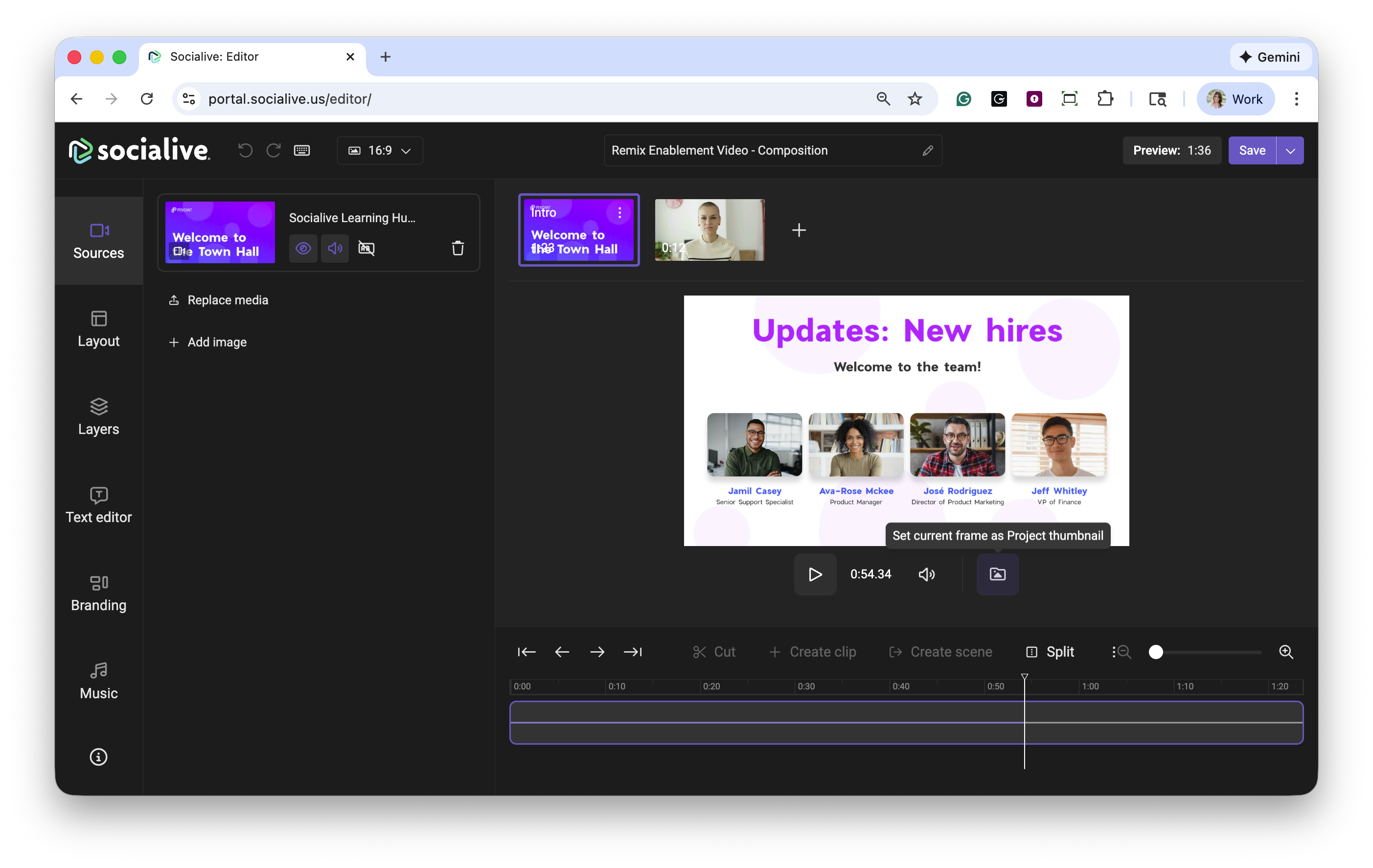
We’ve made it easier to control how your projects appear at a glance. You can now select a custom project thumbnail directly from within the Socialive Editor. Instead of relying on a default frame based on when you last saved the project, you’re now in full control of choosing the image or frame that best represents your content.
How it works
Open a project in the Socialive Editor.
In the preview area, click the project thumbnail icon.
Select the frame you want to use as your thumbnail.
Save your project, your new thumbnail is set.
Why this matters
Better first impressions: Choose a thumbnail that clearly reflects your content.
More control: Highlight key moments instead of relying on an auto-selected frame.
Faster workflows: Update your thumbnail while you’re already editing, no backtracking required.
This feature applies only to projects. Thumbnails for other content types (such as Library content) are not affected.
Still, looking for an answer?
Contact Socialive Support via live chat, email at support@socialive.us, or submit a support ticket.