
When a compliance reviewer is checking a transcript, knowing who said what matters. A statement from a host carries more weight than the same words from a guest, and feedback that says "speaker 2 needs to clarify this claim" is much less useful than feedback that names the actual person.
Speaker identification in the Socialive Editor solves this by automatically detecting and labeling each speaker in the transcript. Once names are applied, a compliance reviewer can read the transcript with full context, leave feedback tied to the right speaker, and hand off any necessary changes to be made in the Editor.
When a recording contains multiple speakers, the Socialive Editor will:
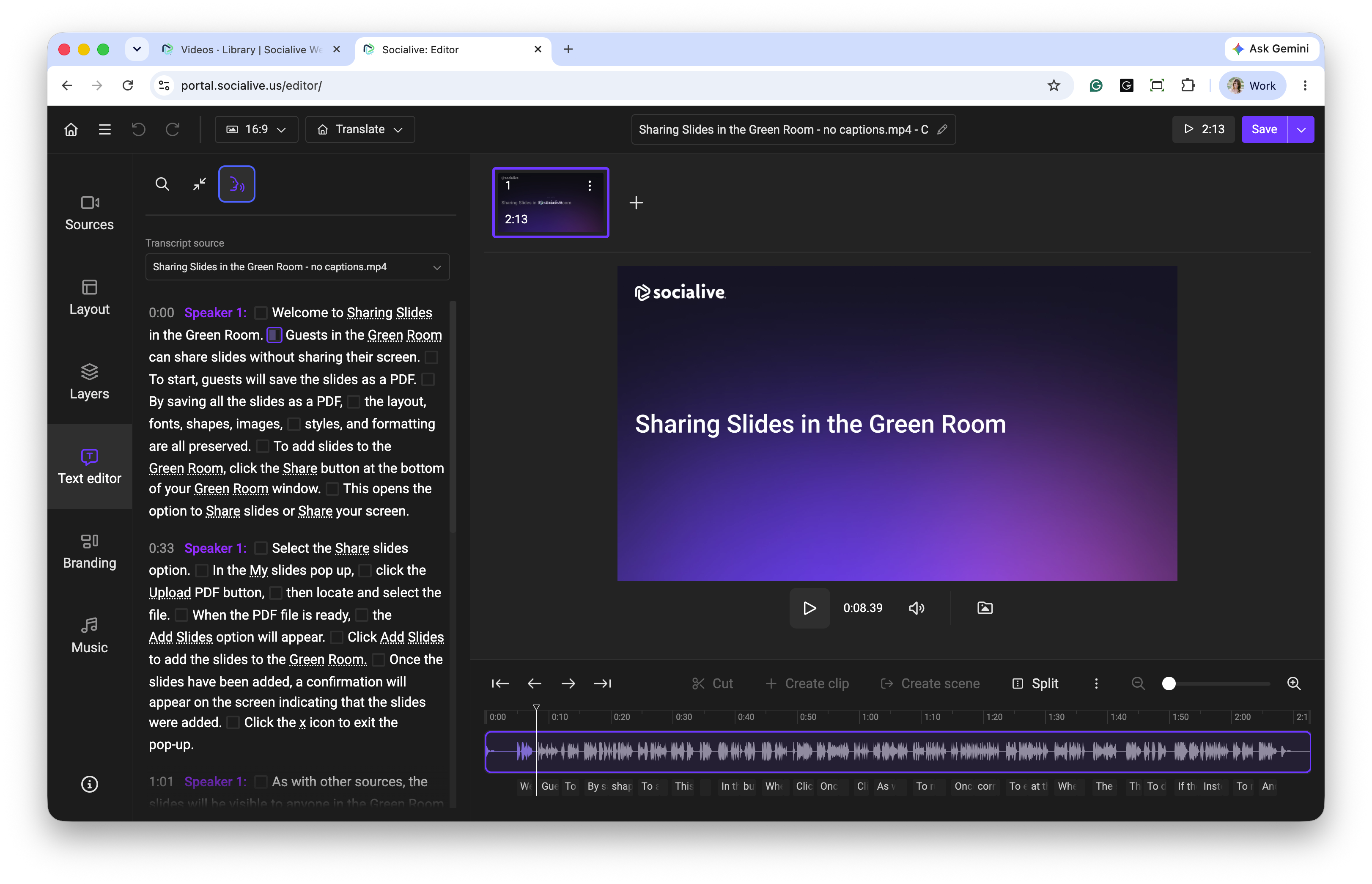
Automatically detect speaker changes throughout the recording and assign a [speaker] label to each speaker.
Separate the transcript by speaker.
Allow you to rename speaker labels (for example, "Speaker 1" to "John Smith" or "Host").
Once updated, the new speaker names are reflected throughout the transcript, making editing faster and collaboration easier.
Note: Speaker identification will work with any content that has more than 1 detectable voice. This content can be created using the ProducerSuite or can be uploaded to Socialive.
When using Socialive, multispeaker recordings must be captured using ProducerSuite. Once the ProducerSuite recording has been uploaded to the Socialive Library, the program recording can then be sent to the Editor to complete speaker identification.
This article will review the steps to turn on speaker identification in the Editor.
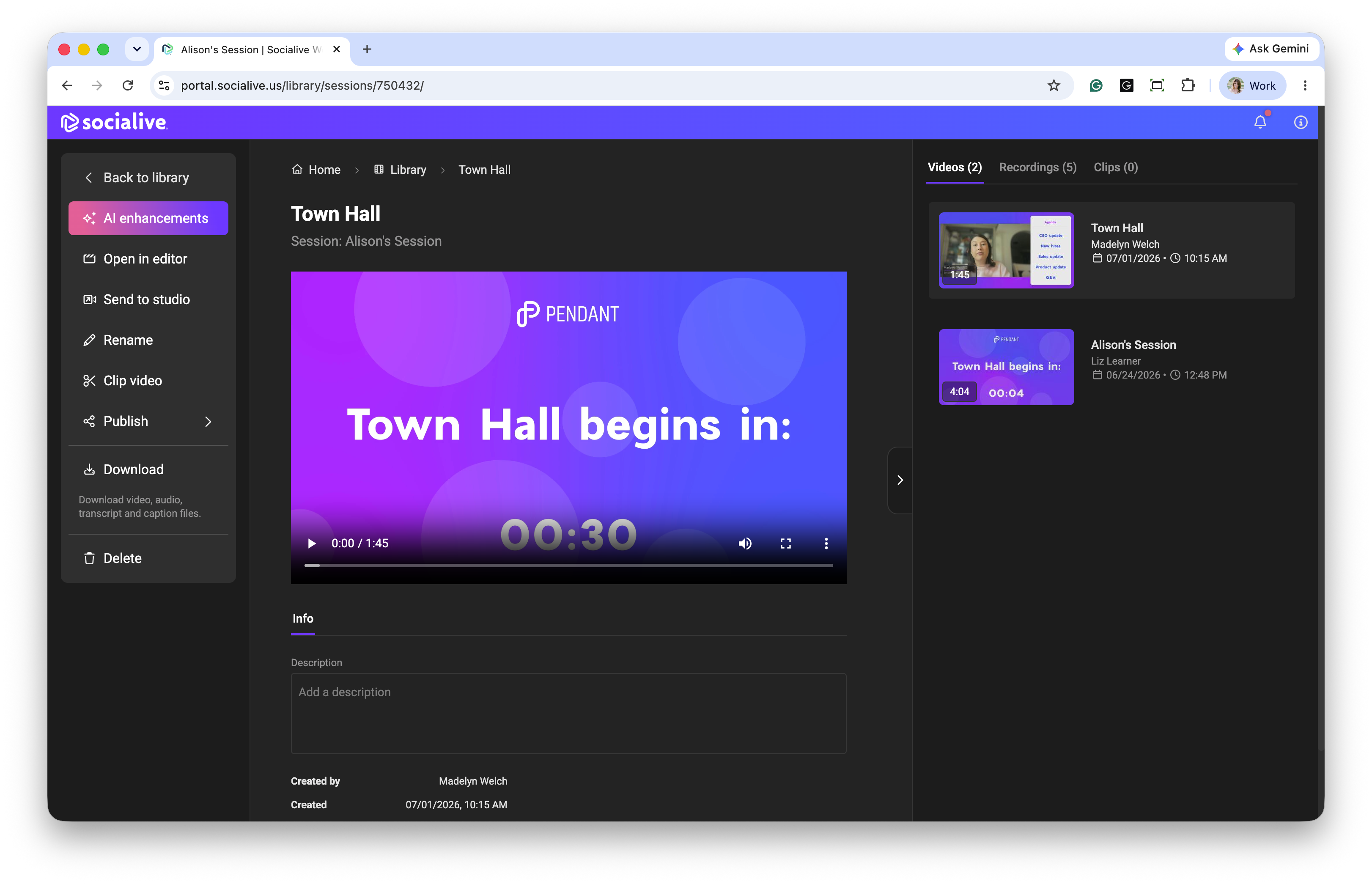
Locate the recording in the Socialive Library and click Open in Editor
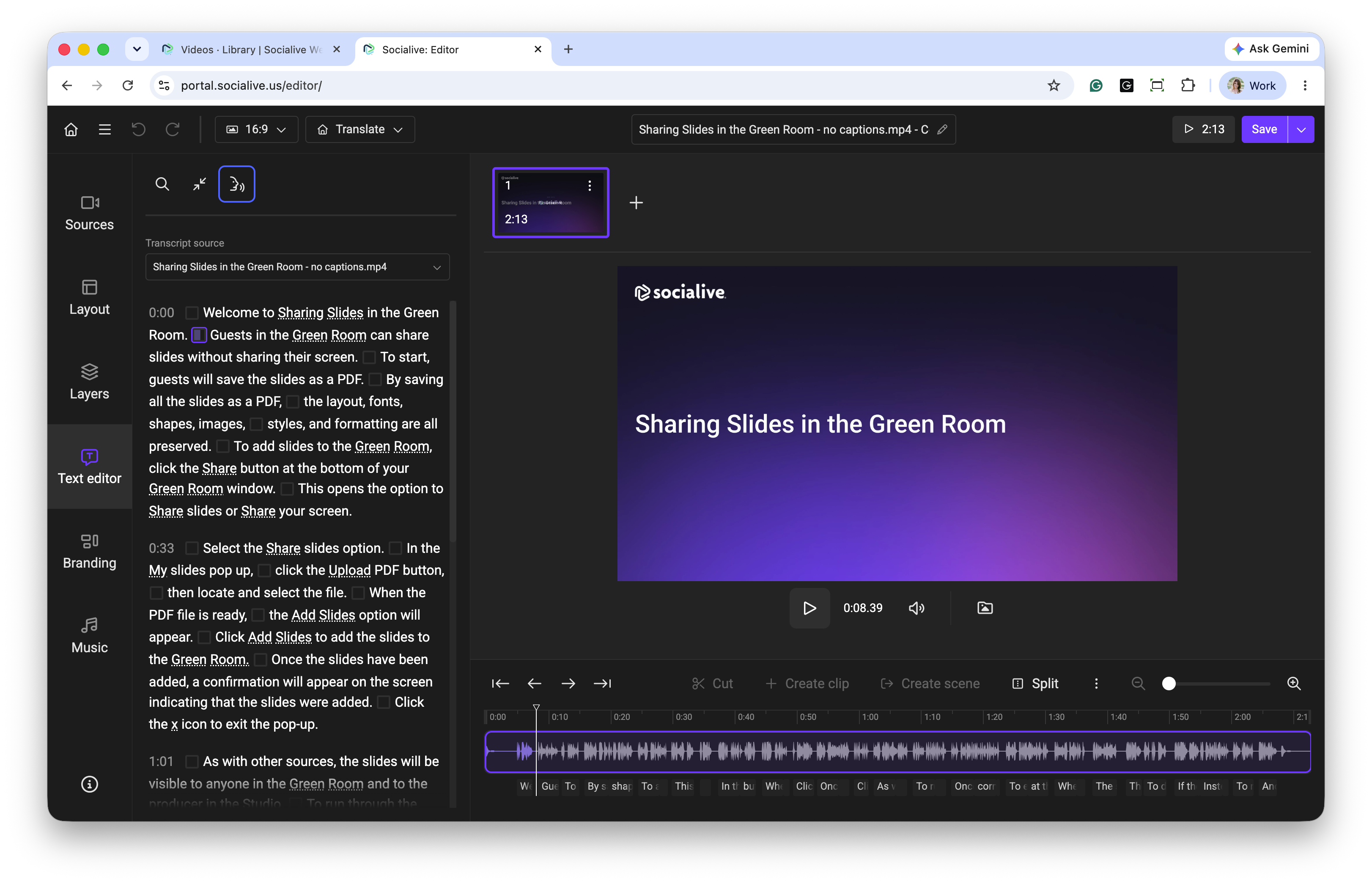
Wait for the transcript to finish processing in the text editor.
Toggle the speaker identification icon to show/hide speaker names in the transcript.
The transcript will display separate speaker labels where speaker changes are detected. Renaming a speaker updates that speaker's label consistently throughout the transcript. Click the Speaker name to rename by adding the Speaker name in the edit popup.
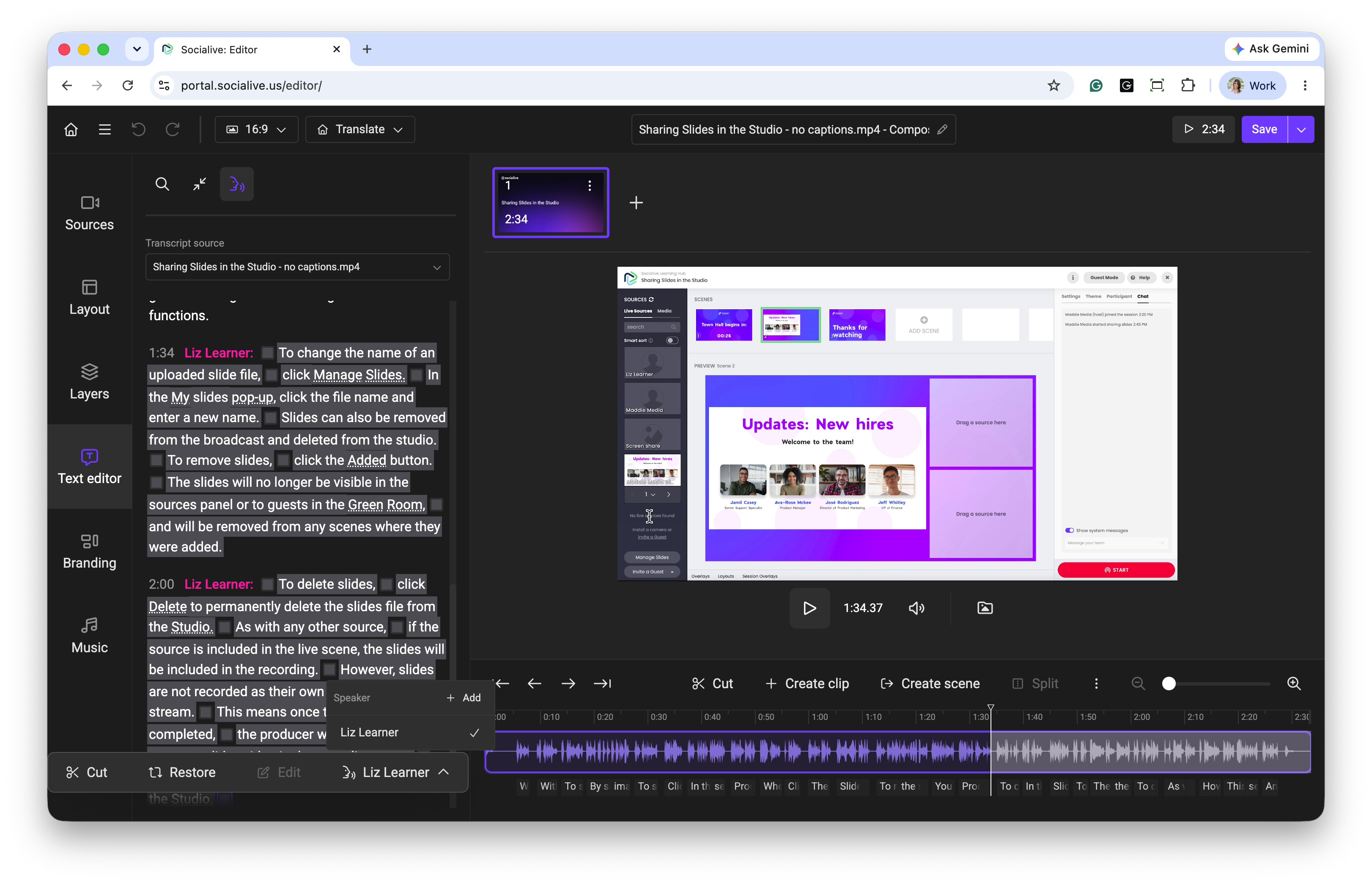
Rename each speaker label as needed, then continue editing, clearly identifying speakers throughout the transcript.
Updating speaker names updates the transcript for the Source file. To download the transcript, go to the Library, locate the Source recording, and download its transcript with the updated changes.
Speaker identification makes editing conversations significantly faster, helping you spend less time organizing transcripts and more time creating polished, professional content.
Best Practices
Speaker detection is powered by AI and is highly accurate, but may occasionally require minor adjustments.
The feature works best with clear audio and minimal overlapping speech.
Benefits
Speaker Identification helps you:
Quickly navigate conversations between multiple speakers
Improve transcript readability
Save time by eliminating manual speaker identification
Produce more accurate captions and transcripts
Streamline editing for interviews, webinars, podcasts, and recorded meetings
Common Use Cases
This feature is ideal for:
Interviews
Podcasts
Panel discussions
Customer testimonials
Roundtable conversations
Multi-presenter webinars
Team meetings and internal recordings
Whether you're editing interviews, podcasts, panel discussions, or customer conversations, Speaker Identification helps you quickly identify who is speaking without manually tracking speaker changes.
Still, looking for an answer?
Contact Socialive Support via live chat, email at support@socialive.us, or submit a support ticket.